Source of truth:ResVR Interior UI
— This system governs the 3D visualizer, interior customizer, and any product-side UI. Do not apply these tokens to the marketing site.
Color Palette
Brand Accent — Dark Mode
cyan-400
#22d3ee
Primary
cyan-500
#06b6d4
Hover
cyan-600
#0891b2
cyan-300
#67e8f9
Base Surfaces — Dark Mode
slate-900
#0f172a
Base BG
slate-800
#1e293b
Surface
slate-700
#334155
slate-600
#475569
slate-500
#64748b
slate-400
#94a3b8
Icons
slate-300
#cbd5e1
slate-200
#e2e8f0
Text Colors — Dark Mode
white
#ffffff
Primary
white/70
rgba(255,255,255,0.7)
white/50
rgba(255,255,255,0.5)
white/30
rgba(255,255,255,0.3)
On dark backgrounds: text-white (primary) · text-slate-300 / white/70 (secondary) · text-slate-400 / white/50 (tertiary) · text-slate-500 / white/30 (disabled)
bg: rgba(255,255,255,0.1) or bg-slate-800 · text: rgba(255,255,255,0.7) · END TOUR, secondary actions
Glass & Alpha Overlays
Semi-transparent color tokens used throughout the glass UI — panel backgrounds, borders, hover states, and active highlights. All values are applied over a dark surface; shown below on slate-900 so you can see them.
white/10
rgba(255,255,255,0.10)
Default border
white/7
rgba(255,255,255,0.07)
Subtle divider
white/5
rgba(255,255,255,0.05)
Section bg
white/8
rgba(255,255,255,0.08)
Hover state
white/15
rgba(255,255,255,0.15)
Active tab bg
white/40
rgba(255,255,255,0.40)
Light border
cyan-400/20
rgba(34,211,238,0.20)
Active icon bg
cyan-400/15
rgba(34,211,238,0.15)
Display toggle bg
slate-900/70
rgba(15,23,42,0.70)
Glass panel
slate-900/90
rgba(15,23,42,0.90)
Elevated panel
slate-900/95
rgba(15,23,42,0.95)
Modal / popover
slate-900/80
rgba(15,23,42,0.80)
Toolbar bg
⚠ IMPLEMENTATION NOTE — DON'T COLOR-PICK
All tokens above are raw RGBA values. When you color-pick a rendered element, you're sampling the token composited with the backdrop (3D scene, image, or dark surface) — the result will always be wrong. Use the raw RGBA values directly in your CSS. The table below shows what each token looks like composited on slate-900 for visual reference only — do not use these hex values in production code.
Composited Approx — Alpha Tokens on slate-900 (#0f172a)
Token
Raw RGBA (use this)
Solid approx on slate-900
Used for
white/5
rgba(255,255,255,0.05)
#1b2335
Section bg
white/7
rgba(255,255,255,0.07)
#202739
Subtle divider
white/8
rgba(255,255,255,0.08)
#222a3b
Hover state
white/10
rgba(255,255,255,0.10)
#272e3f
Default border
white/15
rgba(255,255,255,0.15)
#333a4a
Active tab bg
white/40
rgba(255,255,255,0.40)
#6f747f
Light border (dark mode)
cyan-400/15
rgba(34,211,238,0.15)
#123347
Display toggle bg
cyan-400/20
rgba(34,211,238,0.20)
#133d51
Active icon bg
red-400/15 (Exit / Danger)
rgba(239,68,68,0.15) icon color: #f87171
#311e2e very dark — the tint is subtle by design
Exit button bg · Clear All · destructive actions
Note on slate-900/X panel tokens: these are applied over a 3D scene or image — no solid equivalent exists. Use them as background: rgba(15,23,42,X) directly and let the browser composite against the canvas.
Inter is the only font used throughout the entire product UI — mode rail, sidebar, panels, tooltips, overlays, bottom bar, AI transcript, all badges. No other typefaces.
Role
Size
Weight
Notes
Sample
section-header
18px
300 + 700
light + bold cyan pop
Customize Interior
body
14px
500
menu items, labels
Countertop Selection
label-sm
12px
500–600
secondary labels
Kitchen · 3/5 complete
micro
10–11px
700
uppercase, tracking-wider
Guided Tour
nano
9px
700
badges, option names
Standard
Glass Morphism System
The defining visual pattern of all product UI. Every surface uses backdrop-blur-xl with semi-transparent slate backgrounds.
All glass tokens are semi-transparent. Color-picking a rendered element gives you the token composited with whatever 3D scene or background is behind it — wrong value every time. Use the raw RGBA directly in your CSS. The table below shows what each token looks like composited on slate-900 for visual sanity-checking only.
Glass Tokens — Raw RGBA + Composited Hex on slate-900 (#0f172a)
Token / Used for
Raw RGBA — use this in CSS
Approx on slate-900
Toolbar bg (80%) Floating toolbar, tool pills
rgba(15,23,42,0.80)
#0d1525
Nav rail / sidebar (70%) Mode rail, bottom bar
rgba(15,23,42,0.70)
#0e1928
Sidebar / options (90%) Panels, overlays
rgba(15,23,42,0.90)
#0c1320
Modal / popovers (95%) Confirm dialogs, tooltips
rgba(15,23,42,0.95)
#0c121e
Toolbar btn hover bg on hover state
rgba(255,255,255,0.10)
#1d2636
Toolbar btn active (cyan) Active/selected state · icon: #22d3ee
rgba(34,211,238,0.20)
#122530
Exit / danger button bg: red · icon: #f87171 (red-400)
Container: 100px widefull height ·
Padding: py-8 (32px) top/bottom ·
Design mode icons: 24 × 24px wrapper p-3 (12px) rounded-xl ·
Nav mode icons: 20 × 20px wrapper p-2.5 (10px) rounded-lg ·
Active bar: 3px wide cyan-500 left edge ·
Labels: 9–10px uppercase bold tracking-wider mt-6
Exterior
Interior
Modes
AI
Walk
Tour
Step-by-step
Theme
Active: left-edge 3px bar (cyan-500) + icon bg-cyan-500/20
Label: 9px bold uppercase tracking-wider · Animated active indicator via Framer Motion layoutId
Design Mode Selector — Left Vertical Rail
Fixed left rail (100px wide, full height) containing two sections: Design Modes (Exterior / Interior) at top and Navigation Modes (Walk / Tour / Step-by-Step) at bottom, with a Theme Toggle at the very bottom. Source: components/Interior/DesignModeSelector.tsx
Default bottom bar rendered when NOT in guided tour mode. 50px height. Left: builder logo + model name + customization %. Right: segmented Navigation / Rooms control. 2px cyan progress bar runs along top edge tracking customization percentage. Source: components/Interior/InteriorBottomBar.tsx
Replaces the standard bottom bar when isGuidedTourActive=true. Taller (60px vs 50px), cyan progress bar along top edge, live-dot indicator, room navigation. A separate "MENU" pill button appears top-left when sidebar is collapsed. Source: components/Interior/InteriorBottomBar.tsx
Bar height: 60px ·
Progress bar: 3px ·
Left offset: fixed 100px (always, ignores sidebar) ·
Prev/Next btns: p-2 (8px) · skip icons 16 × 16px ·
Live dot: 6px ·
See diff notes below for class-level comparisons vs standard bar
Menu Pill (sidebar collapsed in tour)
Guided Tour
Bellevue
Kitchen5 of 8
Border color: border-cyan-500/20 vs standard border-white/10
Height: h-[60px] vs h-[50px]
Progress bar: h-[3px] bg-gradient-to-r from-cyan-500 to-cyan-400 shadow-[0_0_12px_rgba(6,182,212,0.6)] vs standard h-[2px] bg-cyan-500
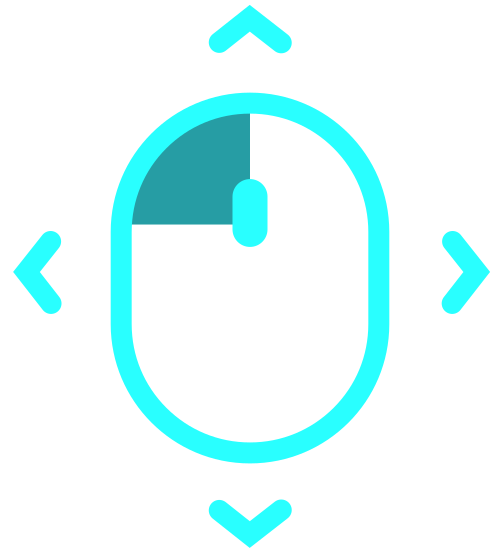
Exists in two forms: Inline (collapsible section at the bottom of the Controls panel) and Standalone Modal (triggered by the keyboard icon — 4th button — in the floating toolbar). Same 5 cards, same SVGs, larger presentation in the modal.
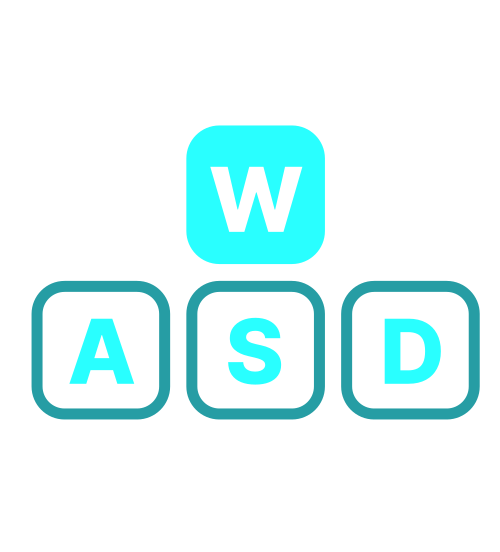
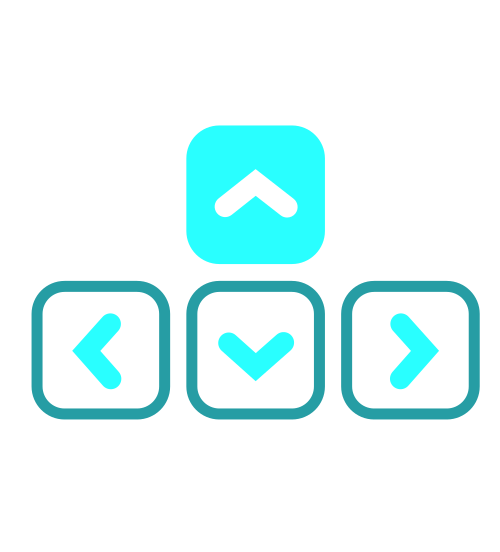
SVG diagrams have dark/light color variants (cyan-400 dark / teal-600 light). MOVE card cycles WASD ↔ arrow keys every 2.5s.
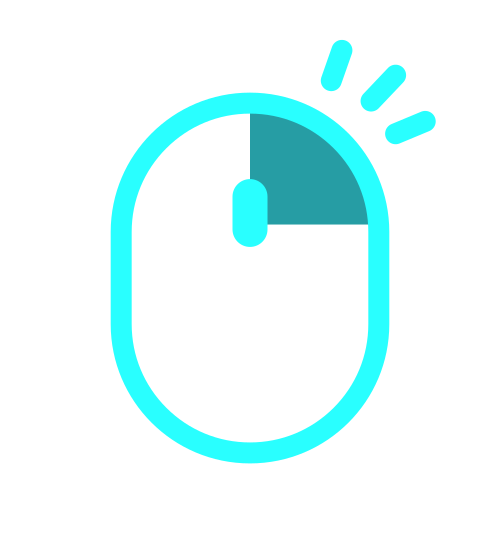
Right ClickCollapse menus / Free navigationRotate freely when activated
Standalone Modal — Triggered via Keyboard Icon (Toolbar)
Centered modal · rounded-xl · bg-slate-900/95 · backdrop-blur-xl · max-w-xl · triggered by keyboard icon (4th button in floating toolbar)
How to Navigate
Look / Rotate
Mouse
Move
WASD← ↑ → ↓
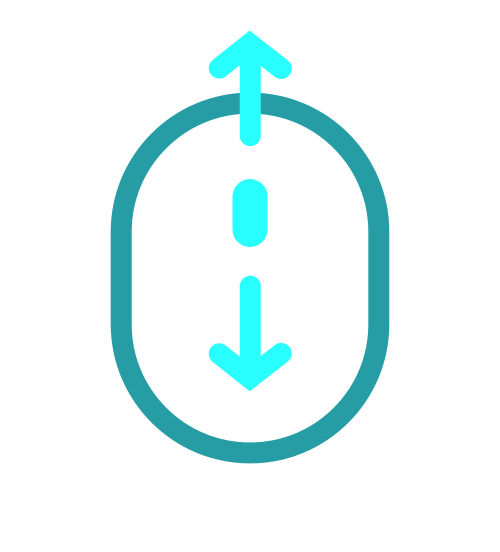
Zoom In / Out
Scroll
Move to Point
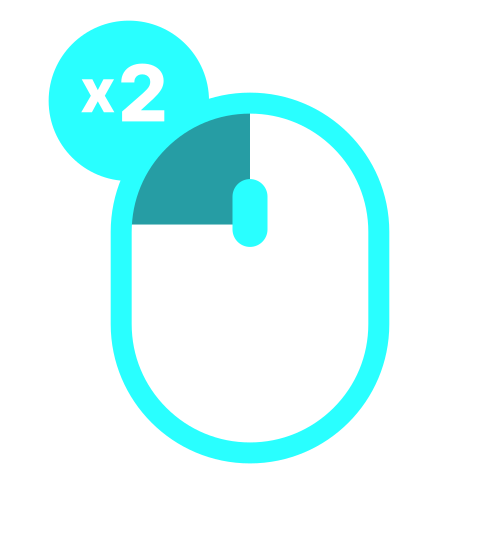
Click ×2
x2
Right Click
Collapse menus / Free navigation
Rotate freely when activated
Mode Panels
Interior Sidebar — Tree Menu
Left-side navigation panel (260px wide) with collapsible category headers, subcategories, and leaf items. Tracks completion state per item. Search with alias support. Source: components/Interior/InteriorSidebar.tsx
Pill tab on right edge of sidebar: chevron-left (open) / chevron-right + "MENU" (closed)
Animates with sidebar: left: isCollapsed ? 100 : 360
Step-by-Step Mode Panel
Anchored to the bottom of the InteriorSidebar when isStepByStep=true. Shows progress indicator, step navigation, and a camera views carousel. Source: InteriorSidebar.tsx → AnimatePresence bottom panel.
Full-screen pointer-events overlay that activates when AI mode is selected. Contains: avatar type selector pill (top-left), avatar card + mic controls (bottom-right), and transcript bubble (bottom-center). Three avatar variants: Human (photo), Orb (radial bar visualizer), Orb Alt (layered SVG soundwave). Source: components/Interior/AssistantOverlay.tsx
fixed inset-0 z-[55] pointer-events-none · children use pointer-events-auto
Avatar Type Selector (top-left, absolute top-20 left-28)
Human Avatar (speaking state — cyan glow)
Human photo
RESVR Assistant
Orb Avatar
56 radial SVG bars around a cyan gradient circle with ResVR logo. Bar heights randomise at 100ms (speaking) / 150ms (listening) / 400ms (idle).
Orb Alt Avatar
3-layer SVG soundwave SVGs (black/dark-teal/light-teal) composited over a white→cyan gradient circle + ResVR logo. Each layer rotates/scales at different speeds per voice state.
Transcript Bubble (bottom-center, absolute)
Speaking state (AI responding)
RESVR AI
Welcome! You're currently in the kitchen. I can see you have the standard countertop selected. Would you like me to show you the premium quartz options?
Horizontal scrollable strip anchored at the bottom of the 3D viewport (above the bottom bar). Shows upgrade options as thumbnail cards with tier badges, tier filter dropdown, search, and expand-to-grid mode. Source: components/Interior/OptionsGallery.tsx
Opens when user clicks "All Levels". Glass popover with checkbox rows per tier + item count. Selecting a specific tier deselects "All Levels" and filters the card strip. Built with Framer Motion AnimatePresence slide-down (opacity + y:−8→0, 150ms easeOut).
Search field filters cards in real time. Count label updates ("2 of 6"). Searches option name + aliases (e.g. "stainless" matches "SS Gas"). No-results state shows empty message with search term.
Info button (ⓘ) in top-left corner of card, revealed on hover. Click or hover shows a glass tooltip above the card with option name, description, tier badge, and price. Always-dark glass pill — same treatment as toolbar tooltips.
Floating pill that appears above the OptionsGallery when the selected option has color variants. Horizontal pill (Bar mode) — the default and only active mode. Source: components/Interior/ColorSwatchPopover.tsx
Floating badge in the bottom-right corner. Expands into a full selections panel. Handles the full checkout flow: review → processing → submitted. Source: components/Interior/SelectionsWidget.tsx
Context-sensitive label used on toolbar buttons, icon-only controls, and option cards. 300ms show delay, 150ms Framer motion easeOut fade + scale. Four directional positions. Dark glass pill — consistent across both themes (always dark).
All interactive elements across the product UI, their states, triggers, and exact token classes. Use this as the source of truth when implementing new components or reviewing QA.